

Description
SecurelyWP is a hassle-free security plugin that makes your WordPress site safer the moment you activate it. Most features work out of the box, with optional CAPTCHA and two-factor authentication (2FA) configuration for enhanced protection. It includes strong security features, system details, security headers, CAPTCHA integration, and 2FA to keep your site secure and healthy.
Why Choose SecurelyWP?
- Works Out of the Box: Most security features activate automatically upon installation.
- Comprehensive Protection: Guards against hacking, malicious files, form spam, and unauthorized access.
- Lightweight: Designed to run smoothly without affecting your site’s speed or performance.
- Free Features: Includes system details, security headers, CAPTCHA, and 2FA to monitor and protect your site.
Features
-
Malware Scanner & File Integrity Monitoring
- Why: Detects unauthorized file changes and known malware signatures in your WordPress installation.
- Impact: Early warning system for compromised files—lightweight, no performance hit.
-
Activity Logging
- Why: Tracks user logins, failed attempts, content changes, and plugin/theme activity.
- Impact: Full visibility into who did what and when—critical for forensic analysis.
-
Vulnerability Scanner
- Why: Checks for outdated plugins/themes, weak file permissions, and known security misconfigurations.
- Impact: Proactive identification of risks before attackers exploit them.
-
Advanced Firewall with Geo-Blocking
- Why: Blocks malicious requests, bot traffic, and access from specific countries.
- Impact: Reduces attack surface with minimal configuration—smart default rules.
-
Hide WordPress Version
- Why: Stops hackers from targeting weaknesses in your WordPress version.
- Impact: Good protection with no effect on your site’s appearance.
-
Disable PHP Execution in Uploads Folder
- Why: Prevents harmful scripts from running if someone uploads a malicious file.
- Impact: Strong defense against file-based attacks.
-
Prevent User Enumeration
- Why: Blocks hackers from guessing usernames through sneaky methods.
- Impact: Keeps your user list safe from prying eyes.
-
Detect & Warn About “admin” Username
- Why: Alerts you if your site uses the risky “admin” username.
- Impact: Big security boost if you change the username.
-
Disable File Editing in Dashboard
- Why: Stops anyone from modifying your site’s code through the WordPress dashboard.
- Impact: Major safeguard against unauthorized code changes.
-
Force HTTPS for Login & Admin
- Why: Ensures your login and admin pages use a secure connection.
- Impact: Critical for keeping your credentials safe.
-
Basic Brute Force Protection (Lite)
- Why: Temporarily blocks repeated failed login attempts.
- Impact: Strong protection against login attacks.
-
Firewall Geo-Blocking
- Why: Block visitors from specific countries to reduce attack surface.
- Impact: Strong protection against geographic-based attacks with minimal performance impact.
-
Enhanced Bot Detection
- Why: Identify and block automated scrapers, headless browsers, and vulnerability scanners.
- Impact: Reduces automated attacks and server load.
-
Malware Scanner & File Integrity Monitor
- Why: Detect suspicious code patterns in plugins, themes, and uploads; verify WordPress core files against official checksums.
- Impact: Early detection of compromised files and supply-chain attacks.
-
User Activity Log
- Why: Track logins (success/failed), content changes, and plugin activations.
- Impact: Forensic visibility for incident response and compliance.
-
Vulnerability & Permissions Audit
- Why: Check critical file permissions and flag outdated core/plugins/themes.
- Impact: Proactive hardening and compliance hygiene.
-
System Details
- Why: Shows important info about your site to monitor its health.
- Impact: Keeps you informed about your site’s status.
-
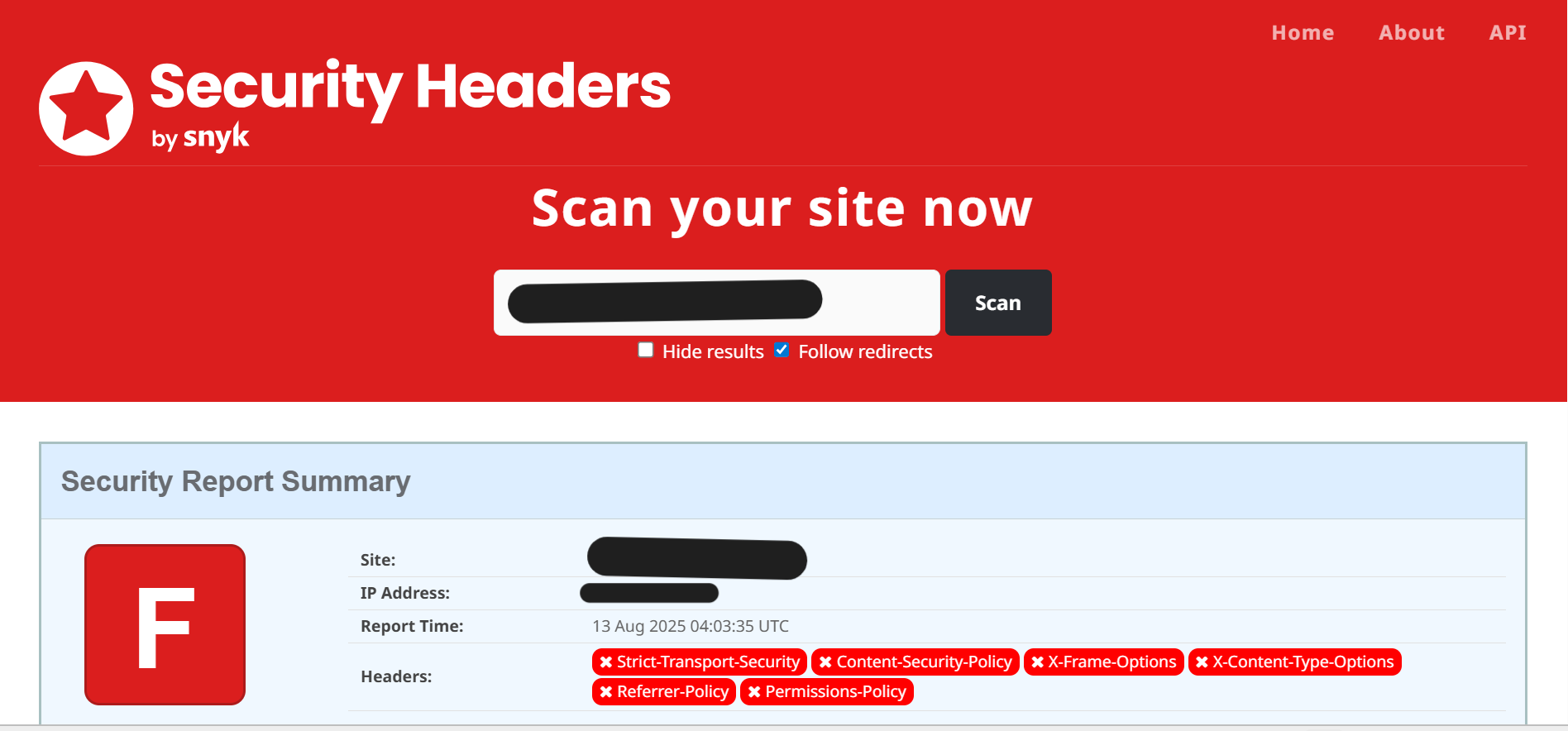
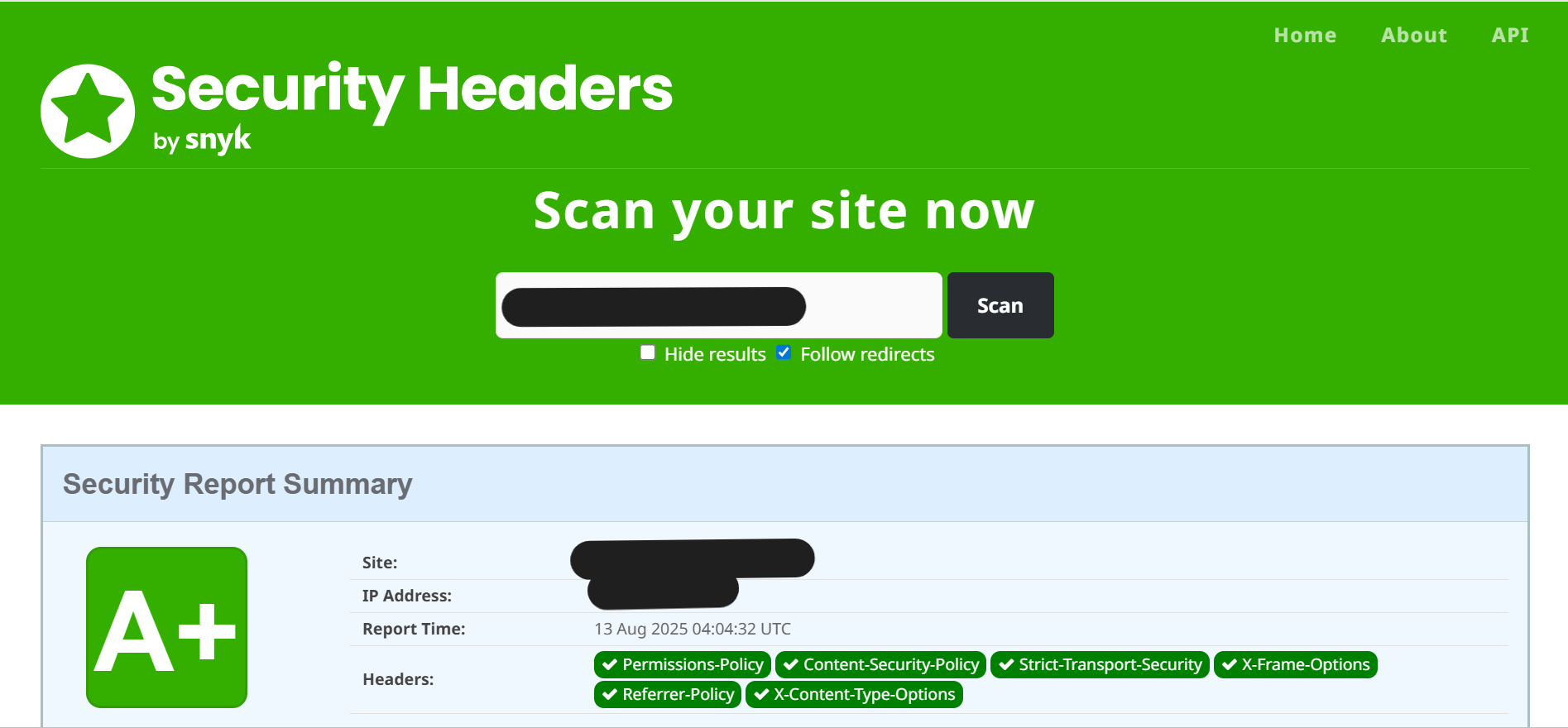
Security Headers
- Why: Adds HTTP headers to improve your site’s security.
- Impact: Strengthens your site’s defense with minimal setup.
-
CAPTCHA Protection (Cloudflare Turnstile)
- Why: Adds CAPTCHA to prevent spam and bot submissions.
- Impact: Enhances form security with user-friendly CAPTCHA.
-
Two-Factor Authentication (2FA)
- Why: Adds an extra layer of security by requiring a second verification step during login.
- Impact: Significantly reduces the risk of unauthorized access.
2FA Features:
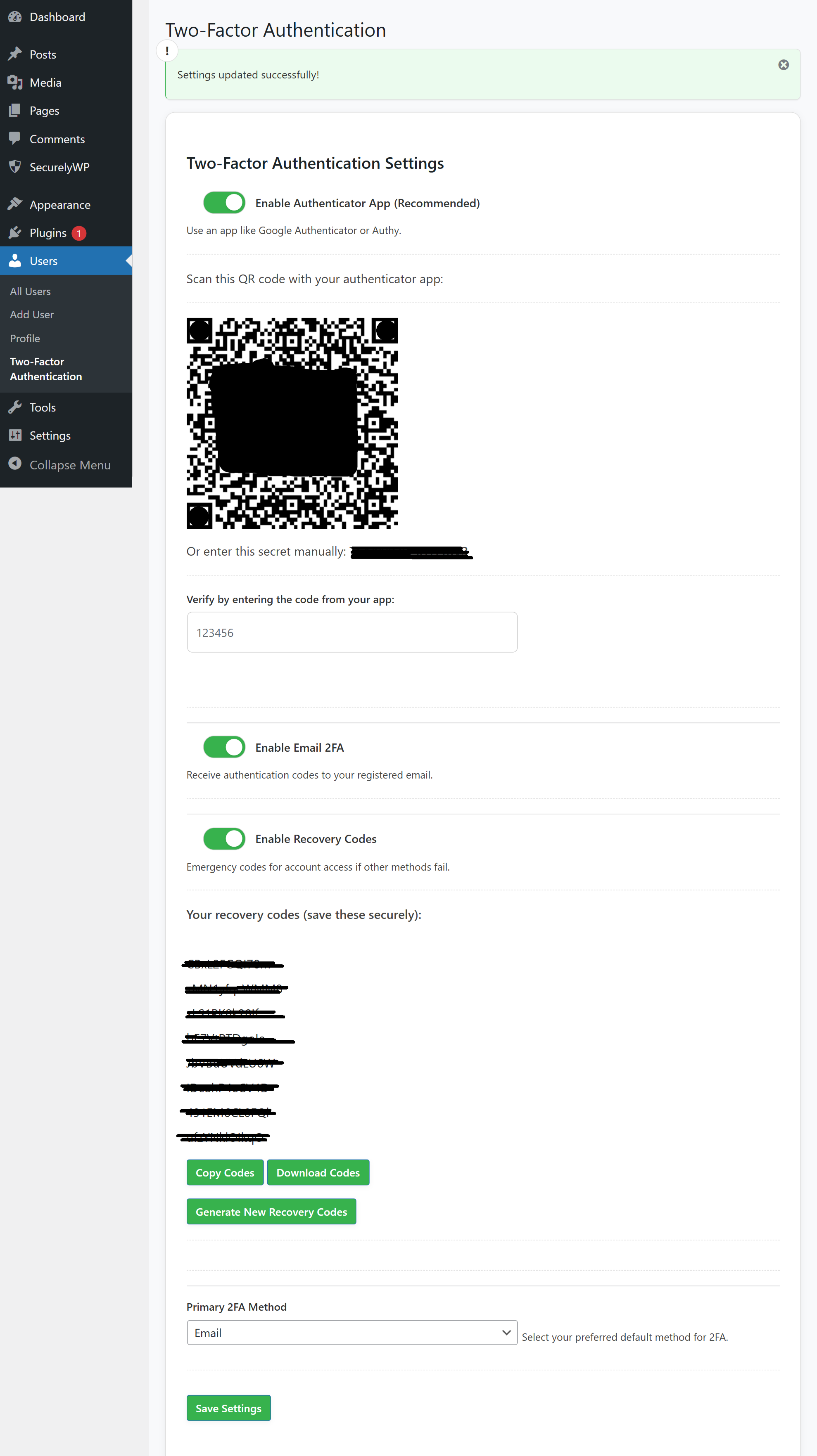
– Authenticator App (TOTP): Use apps like Google Authenticator or Authy for time-based codes.
– Email 2FA: Receive codes via email for verification.
– Recovery Codes: Generate emergency codes for access if other methods are unavailable.
– Per-User Settings: Each user can configure their own 2FA preferences.
– Multisite Support: Super admins can enforce 2FA network-wide.
– Flexible Options: Choose primary 2FA method from TOTP, Email 2FA, or Recovery Codes.
Supported Forms, Plugins & Multisite for CAPTCHA:
– Core WordPress: Login, Registration, Lost Password, Comment
– E-commerce & Membership: WooCommerce Checkout, MemberPress, Ultimate Member, WP-Members
– Form Plugins: WPForms, Gravity Forms, Contact Form 7 (CF7), Formidable Forms, Forminator, Elementor Pro, Easy Digital Downloads (EDD), Mailchimp for WordPress
– Community / Forums: BuddyPress, bbPress
– Multisite: Multisite Signup Forms
How to Set Up CAPTCHA with Cloudflare Turnstile
- Sign Up for Cloudflare: Go to https://www.cloudflare.com/ and create a free account or log in.
- Add Your Site: Click Add a Site” in the dashboard and enter your domain.
- Access Turnstile: Navigate to the Turnstile” section in the Cloudflare dashboard.
- Create a Turnstile Widget:
- Click Add Widget”
- Provide a name (e.g., SecurelyWP CAPTCHA”)
- Add Hostnames (your domain, e.g., example.com) Click Add”
- Choose the widget type (Managed”)
- Get Your Keys: Copy the Site Key and Secret Key.
- Add Keys to SecurelyWP: Go to SecurelyWP > CAPTCHA Settings in WordPress paste keys enable CAPTCHA for desired forms.
- Test Your CAPTCHA: Visit a form to ensure the CAPTCHA widget appears and works correctly.
How to Set Up Two-Factor Authentication
- Access 2FA Settings: Go to Profile” > Two-Factor Authentication” in your WordPress dashboard.
- Enable 2FA Methods:
- Authenticator App: Scan the QR code or enter the secret into your app (Google Authenticator, Authy). Verify with a code.
- Email 2FA: Enable to receive codes via email.
- Recovery Codes: Generate emergency codes. Copy or download codes for safekeeping.
- Choose Primary Method: Select your preferred 2FA method (Authenticator App, Email, or Recovery Codes).
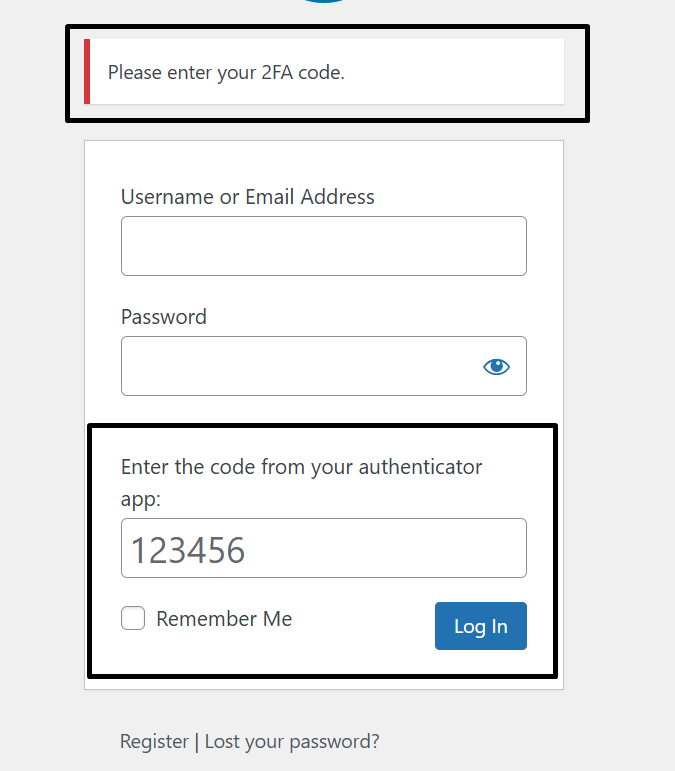
- Test 2FA: Log out and log in to verify the 2FA prompt appears below the login form.
- Multisite (Super Admins): Enable network-wide 2FA enforcement for all users.
Screenshots




Installation
- Go to Plugins” > Add New,” search for SecurelyWP,” click Install Now” and Activate.”
- Or upload the plugin ZIP file via Plugins” > Add New” > Upload Plugin.”
- Automatic Protection: Most features start protecting your site immediately upon activation.
- Optional CAPTCHA Setup: Go to SecurelyWP > CAPTCHA Settings and add your Cloudflare Turnstile keys.
- Optional 2FA Setup: Go to Profile” > Two-Factor Authentication” to configure 2FA.
- Check Dashboard: Visit SecurelyWP” to view site health, scan for risks, or configure settings.
FAQ
-
Do I need to configure anything after installing SecurelyWP?
-
Most features work automatically. For CAPTCHA, add Cloudflare Turnstile keys. For 2FA, configure under Profile” > Two-Factor Authentication.”
-
Will this plugin slow down my site?
-
No, SecurelyWP is lightweight and won’t affect performance.
-
Does it work with my theme or other plugins?
-
Yes, SecurelyWP works with any theme and most plugins.
-
What if my site doesn’t have HTTPS?
-
Force HTTPS” requires SSL. Other features, including 2FA, work fine without HTTPS.
-
Can I use SecurelyWP on a multisite?
-
Yes, including signup forms for CAPTCHA and network-wide 2FA.
-
Where do I get Cloudflare Turnstile keys?
-
Sign up at Cloudflare, add your site, and create a Turnstile widget.
-
How do I set up 2FA for my account?
-
Go to Profile” > Two-Factor Authentication,” enable your preferred methods, and follow setup instructions.
Reviews
There are no reviews for this plugin.
Contributors & Developers
“SecurelyWP – all-in-one security” is open source software. The following people have contributed to this plugin.
Contributors

Translate “SecurelyWP – all-in-one security” into your language.
Interested in development?
Browse the code, check out the SVN repository, or subscribe to the development log by RSS.
Changelog
1.1.0
- Added Firewall Geo-blocking capabilities.
- Added Enhanced Bot Detection module.
- Added Malware Scanner with file integrity monitoring against WP.org checksums.
- Added User Activity Logging for logins, posts, and plugins.
- Added Vulnerability Scanner to audit file permissions and outdated software.
1.0.8
- Added Firewall.
1.0.7
- Added Two-Factor Authentication (2FA) with Authenticator App (TOTP), Email 2FA, and Recovery Codes.
- Added per-user 2FA settings under Profile for all roles.
- Added multisite support for network-wide 2FA enforcement by super admins.
- Added 2FA form below WordPress login with verification.
1.0.6
- Added CAPTCHA Protection using Cloudflare Turnstile for forms.
1.0.5
- Added Security Headers feature with industry-standard HTTP headers.
1.0.4
- Added Hide WordPress Version
- Added Disable PHP Execution in Uploads Folder
- Added Prevent User Enumeration
- Added Detect & Warn About “admin” Username
- Added Disable File Editing in Dashboard
- Added Force HTTPS for Login & Admin
- Added Basic Brute Force Protection
- Added System Details
- Major features released