

Description
The usual way to find a plugin conflict is to deactivate plugins one at a time and see what changes. On a live site that means taking features away from real visitors and customers while you experiment.
TroubleLens does the same investigation without that cost. It gives you a private troubleshooting session: plugins you switch off stop loading for your requests only. Everyone else — visitors, customers, other administrators, search engines, scheduled tasks — continues to get the site exactly as it is. The list of active plugins in your database is never changed.
How it works
Starting a session writes one small must-use plugin and sets a cookie in your browser. On requests carrying that cookie, WordPress is told a different list of active plugins. That is the only supported way to do this: the plugin list is read before any normal plugin has loaded, so the code doing the filtering has to already be running.
What it does
- Troubleshooting mode. Switch any active plugin off for yourself. Nothing is deactivated.
- Theme test. Render your own session with a bundled default theme while visitors keep the live one.
- Guided isolation. Answer is the problem still there?” a handful of times. It first checks with every plugin switched off, so a problem that is not a plugin at all is traced to your theme or placed outside both rather than pinned on an innocent plugin. Otherwise it narrows twenty candidates down to one by halves, then confirms it by switching that one off and on again.
- Conflict pairs. A conflict usually takes two. Once a plugin is confirmed, the guide keeps it running and finds what else the problem needs: a second plugin, your theme, or nothing at all. The pair is confirmed off and on in the same way, and both appear in the report.
- Diagnostics. REST API, WP-Cron and read-only database checks, plus errors read from the WordPress debug log and grouped by the component they were recorded in.
- WooCommerce checks. Version, required pages, HTTPS, template overrides that have fallen behind, and the scheduled action queue. Only appears when WooCommerce is running.
- Support report. Everything gathered, in text or JSON, with credentials and personal data stripped out.
- Automatic isolation. Describe how to tell the problem apart once and the whole search runs itself, partner search included, fetching the page through your session after each round and keeping what it saw with every answer.
- Isolation in your browser. For problems only a running page shows, such as a JavaScript error, a button that never appears or a request that fails, your own browser loads the page in a hidden frame after each round and answers for you.
- Where they meet. For a confirmed pair, the hooks both use, callbacks one removes from the other, names both register and libraries both load: the places a developer would start looking.
- Test an earlier version. Run the version a plugin had before its last update, for your session only, while visitors keep the installed one.
- Watch after updates. Off until you switch it on. After every update it re-checks a few pages as a visitor sees them, and flags one that stopped working, with the update that came just before.
- Saved sets. Save what you switched off under a name, and switch the same things off again in one click.
- Database queries by plugin. How many queries each plugin runs while a page is built, how long they take, and the slowest one.
- JavaScript errors. Recorded in your browser during a session and attributed to a plugin or theme. These never reach the PHP debug log.
- Duplicate libraries. Two copies of jQuery or Select2 on one page, named with both loaders. Found without reproducing anything.
- Where plugins meet. Hooks with callbacks from more than one plugin, and which plugins detach other people’s callbacks.
- Load cost. What each plugin adds to a page, measured by switching it off for your session and reloading.
- What changed. Real version numbers recorded when WordPress updates something, so it worked yesterday” has an answer.
What it will not do
This is a diagnostic tool, so it does not change things it is measuring:
- It never writes to the
active_pluginsoption, and it prevents anything else from writing it while a session is running. - It never switches your real theme.
- It never rolls a plugin back for visitors. An earlier version under test runs for your session only, and is deleted when the test ends.
- It never deletes, optimises or repairs anything in the database, and never clears a transient or a scheduled event.
- It never writes to
wp-config.php, including to enableWP_DEBUG. - It never installs its own PHP error handler. It reads what WordPress already records, and states plainly what that misses.
- It never reports a plugin as the cause of anything. It reports what was observed, with the observations attached, and says strong candidate” where that is what the evidence supports.
Privacy
TroubleLens has no telemetry, no tracking and no advertising, and contacts no third party service. The HTTP requests it makes go to your own site and nowhere else: to your REST API, to check that it answers, and to your own pages, to time them or to see whether a symptom is still there. If you switch on Watch after updates, it also requests the pages you chose after each update, as a visitor would, and emails the site’s own address about one that stopped working if you asked it to.
There are exactly three exceptions, and each only happens when you press the button that causes it.
The outgoing mail check sends a single message to the email address on your own account, so that a site whose mail is broken finds out before its customers do. It carries nothing about your site beyond its name.
The core file check asks WordPress.org for the list of checksums published for your exact version, and compares the files here against it. All it sends is the version and language needed to identify which list to return. Your own themes, plugins and uploads are never checked, because nobody publishes checksums for those.
Testing an earlier version downloads that version of the plugin from downloads.wordpress.org. The request names the plugin and the version, and nothing else about your site.
Support reports are built and rendered on your server. Nothing is transmitted anywhere; you copy or download the report and send it yourself. Before it is shown to you, passwords, salts, authentication keys, tokens, API keys and payment gateway credentials are removed, email addresses are replaced, and absolute server paths are made relative.
Screenshots


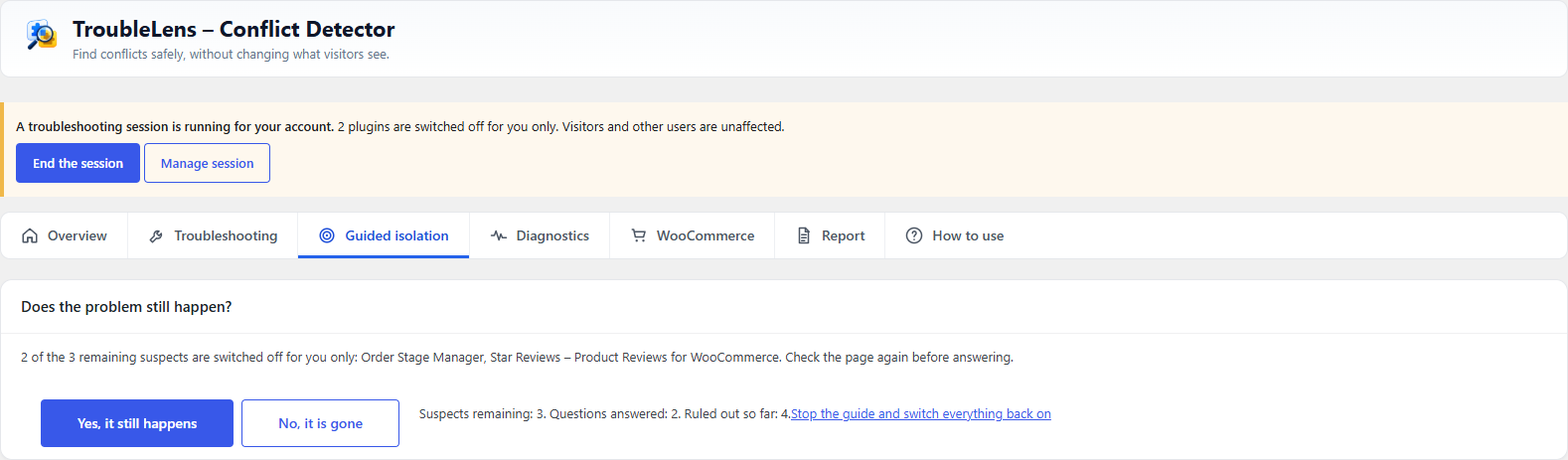


Installation
- Upload the plugin through Plugins Add Plugin Upload Plugin, or install it from the plugin directory.
- Activate it.
- Open TroubleLens in the admin menu.
Activation writes nothing beyond a version marker. The must-use file that makes troubleshooting sessions work is only written when you start your first session, and is removed again when you deactivate the plugin.
FAQ
-
Will my visitors notice anything?
-
No. A troubleshooting session applies to requests that carry your session cookie. Every other request — every visitor, bot, cron run and other logged-in user — loads the site normally.
-
Can I break my site with this?
-
The session only affects you, so a mistake stays with you. If you switch off something your admin screens need, the recovery link on the troubleshooting screen ends the session before any plugin loads, so it works even when the site is returning a fatal error.
-
How do I get out if everything is broken?
-
In order of how little needs to be working: use the recovery link shown on the troubleshooting screen; clear this site’s cookies in your browser; wait for the session to expire; add
define( 'TROUBLELENS_DISABLE', true );towp-config.php; or deletewp-content/mu-plugins/troublelens-conflict-detector-loader.php. Deactivating the plugin does the last two for you. -
Can I test the version of a plugin from before its last update?
-
Yes, for plugins hosted on WordPress.org, and once TroubleLens has seen the plugin updated. The earlier version is downloaded when you press the button and loaded for your session only; visitors keep the installed version. It runs against your real database, so anything it writes is written for everyone. Take a backup first, especially for shop, membership and course plugins whose updates change their data.
-
Does TroubleLens do anything on its own?
-
Only if you switch on Watch after updates. Then, a minute after each update, it requests the pages you chose the way a visitor would, and shows a notice if one that passed before now fails. Everything else happens when you press a button.
-
Can I browse the site logged out while a session is running?
-
No. The session is tied to your user account, and a request that is not you ends it. This is deliberate: it is what stops a leaked cookie applying to anybody else.
-
Why can’t I switch off a must-use plugin?
-
Must-use plugins load before any code that could filter them, including this one. The same is true of drop-ins like
object-cache.php. The overview screen lists them so you know what is outside the test. -
Why did switching off one plugin switch off others?
-
Because they declare that they require it. WordPress deactivates dependents when a dependency goes, and a session does the same, or those plugins would be running against something that is not there — producing an error that looks exactly like the conflict you are hunting. The screen tells you which ones went and why.
-
Why can’t I deactivate a plugin while a session is running?
-
You can deactivate a plugin you have not hidden. What is blocked is a plugin deactivating itself, which many do when a dependency is missing. Without that block, hiding WooCommerce for your own session would make its extensions switch themselves off for every visitor.
-
Does it work on multisite?
-
On multisite, only network administrators can start a session, and only the current site’s own active plugins can be switched off. Network-activated plugins are listed and flagged but cannot be toggled.
-
Where do the error reports come from?
-
From the WordPress debug log, when
WP_DEBUG_LOGis enabled, and from the extensions WordPress itself paused after catching a fatal error. The plugin will not enable debugging for you, because that means editingwp-config.php. The diagnostics screen lists exactly what this approach cannot see. -
Built to be extended
-
The screens, the diagnostics, the findings and the report are all open to a plugin that wants to add to them, through documented filters and actions with tests that prove each one fires. Whatever an add-on contributes to a report is redacted along with everything else, and a finding it adds carries the observations behind it like any other. See docs/EXTENDING.md in the plugin folder.
-
Credits
-
The icons and the two illustrations in this plugin were generated with AI rather than taken from an icon set, so nothing here carries a third party licence. They are distributed under the same GPLv2 or later as the rest of the plugin.
Reviews
There are no reviews for this plugin.
Contributors & Developers
“TroubleLens – Conflict Detector” is open source software. The following people have contributed to this plugin.
Contributors
Translate “TroubleLens – Conflict Detector” into your language.
Interested in development?
Browse the code, check out the SVN repository, or subscribe to the development log by RSS.
Changelog
1.0.2
- Feature – Finds what a plugin conflicts with: another plugin, your theme, or nothing.
- Feature – Checks with every plugin off first, so a theme or server problem is not blamed on a plugin.
- Feature – The automatic search can now find JavaScript problems: script errors, missing buttons and files that fail to load. Your browser checks the page after each round.
- Feature – Test the version a plugin had before its last update, for your session only.
- Feature – Watch after updates: checks your chosen pages after every update and warns you if one stops working. Off until you turn it on.
- Added – Find what it clashes with” button after a plugin is confirmed.
- Added – The automatic run also finds what the plugin conflicts with.
- Added – The automatic run shows what it saw in each round.
- Added – The report shows evidence for both sides of a conflict.
- Added – Where they meet”: shows the hooks, names and libraries two conflicting plugins share.
- Added – Saved sets: switch the same plugins off again in one click.
- Added – Database queries by plugin, with the slowest query.
- Modify – A plugin is no longer named in the result if the problem stayed with it switched off.
- Modify – Results name the plugin instead of saying the plugin”.
- Modify – Full-colour logo in the plugin header.
- Modify – JavaScript errors are now caught from the very top of the page.
- Modify – Plugin versions are also recorded just before an update.
- Fix – The guide could repeat the same question forever with a plugin and its add-on.
- Fix – Automatic isolation, Save and test it once” and load cost now use your session.
1.0.1
- Feature – Fatal errors during your session are now recorded.
- Added – How to use” section.
- Modify – Renamed to TroubleLens.
- Modify – All request input is now sanitized.
1.0.0
First release.
- Feature – Switch plugins off for yourself only. Visitors see the site as normal.
- Feature – Switching off a plugin also switches off plugins that need it.
- Feature – The real plugin list is never changed during a session.
- Feature – Test with a default theme, for your session only.
- Feature – Session options: bypass the page cache, keep the admin bar, log changes.
- Feature – The Plugins screen hides the Activate link for plugins your session switched off.
- Feature – Guided isolation that halves the suspects each round.
- Feature – Automatic isolation that runs the search for you.
- Feature – Evidence levels (strong, moderate, low) instead of made-up percentages.
- Feature – JavaScript errors captured during a session, with the plugin or theme behind them.
- Feature – Finds duplicate copies of libraries like jQuery on a page.
- Feature – Shows where plugins share hooks or remove each other’s callbacks.
- Feature – Measures how much each plugin slows a page.
- Feature – Records plugin versions when WordPress updates something.
- Feature – REST API, WP-Cron, database and server checks.
- Feature – PHP errors from the debug log, grouped by plugin.
- Feature – Outgoing HTTP requests recorded, with timing and the plugin that made them.
- Feature – Core file check against WordPress.org checksums.
- Feature – Outgoing mail test.
- Feature – WooCommerce checks.
- Feature – Support report in text and JSON, with private data removed.