
Description
Bring one consistent design system to your whole WordPress site, whether you build with Elementor, the block editor (Full Site Editing), or plain CSS.
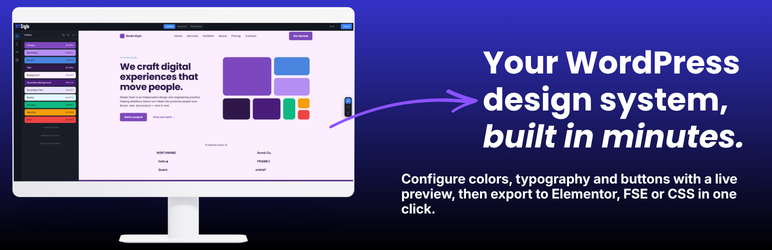
YAOTW Stylo turns a design system (colors, typography, buttons, spacing, effects) into real WordPress settings. You design your system visually in the free WPStylo app (app.wpstylo.dev), export a single JSON file, then import it here and apply it to your site in one click.
No more copying hex codes by hand, no more mismatched headings between your page builder and your block templates. Define your tokens once, apply them everywhere, and keep every page on brand.
Design your system at app.wpstylo.dev. Learn more at wpstylo.dev.
Why designers and developers use it
- One source of truth. Your colors, fonts and button styles come from a single JSON file, so your whole site stays consistent.
- Works with your stack. Apply the same design system to Elementor, to block themes (FSE / theme.json), or to any theme through CSS custom properties.
- No code required. Design visually, import, apply. The plugin writes the settings for you.
- Non-destructive by default. Your existing content is preserved, backups are created before risky operations, and everything can be restored or removed.
- Lightweight. Styles are delivered efficiently and the admin stays fast; nothing heavy is loaded on your front-end unless a feature needs it.
- Free. The plugin and the WPStylo app are free to use.
Apply your design system to three targets
1. CSS Custom Properties (works on any theme)
Injects --wps-* CSS custom properties and ready-to-use utility classes (for headings, body text and buttons) into your site. Use them anywhere in your own CSS or templates. Perfect when you are not on Elementor or a block theme.
2. Elementor
Applies your tokens to Elementor’s global Kit (Site Settings): colors, typography and button styles, including button box-shadow. Using Elementor’s newer Atomic design (v4+)? One extra click injects matching variables and utility CSS classes, without overwriting your existing global variables.
3. Full Site Editing (theme.json)
Applies your tokens to a block theme’s theme.json, with two modes:
- Write (non-destructive): merges your palette and fonts alongside the theme’s existing ones.
- Overwrite: replaces the palette, font families and font sizes with yours only, for a clean slate (other theme.json settings such as spacing and layout are left untouched).
Either way, a backup is created first and can be restored in one click. On block themes you also get five ready-made button block styles (Stylo Primary, Secondary, Outline, Ghost, Link) selectable directly from the editor.
Scroll appearance effects
Give your pages a polished feel with built-in scroll animations (Fade Up, Fade In, Slide Left, Slide Right, Zoom In) that reveal sections as visitors scroll. They run on the Elementor and FSE targets, respect the reduced motion” accessibility preference, and never hide your content when scripting is off. Enable or disable them any time, no re-import needed.
What gets imported
Colors (semantic roles), fluid typography (responsive clamp() sizing), button variants with hover and focus states, button box-shadow, border radius, transitions, and scroll appearance effects.
Built for real workflows
- Re-import an updated design system any time; applying again keeps your custom content intact.
- Export the currently imported configuration as a JSON backup you can re-import later.
- Clear, tabbed admin: Import & Apply, Reference (copy-ready classes), Summary, Tools, and an in-plugin Guide.
Design your system at app.wpstylo.dev. Full documentation and tutorials at wpstylo.dev.
Screenshots


Installation
- Install the plugin from your WordPress dashboard (Plugins > Add New > search for YAOTW Stylo”), or upload the plugin zip via Plugins > Add New > Upload Plugin.
- Activate the plugin through the Plugins menu.
- Open YAOTW Stylo in your admin menu.
- Design your system at app.wpstylo.dev and export a JSON configuration (or paste one you already have).
- On the Import & Apply tab, upload or paste your JSON, click Import configuration, then apply it to the target you use (CSS Custom Properties, Elementor, or Full Site Editing).
Tip: always try the plugin on a staging or development site first, and back up your files and database before applying on production.
FAQ
-
Do I need the WPStylo app?
-
Yes. You design your system visually in the free WPStylo app at app.wpstylo.dev and export a JSON file. This plugin imports that file and applies it to your WordPress site.
-
Is it free?
-
Yes, both the plugin and the WPStylo app are free to use.
-
Does it work with Elementor?
-
Yes. It applies your colors, typography and button styles to Elementor’s global Kit. If you use Elementor’s Atomic design (v4+), you can additionally inject matching CSS variables and utility classes.
-
Does it work with block themes and Full Site Editing?
-
Yes. On a block theme it writes your tokens to
theme.json(with a non-destructive Write” mode and a clean-slate Overwrite” mode) and adds five button block styles you can pick in the editor. -
I don’t use Elementor or a block theme. Can I still use it?
-
Yes. The CSS Custom Properties target works on any theme: it injects
--wps-*variables and utility classes you can use in your own CSS or templates. -
Will it overwrite my existing settings?
-
It depends on the target and the action. Applying to Elementor updates the global Kit’s system colors, typography and button; your custom colors and custom fonts are preserved. On FSE, Write” merges alongside your theme’s palette and fonts, while Overwrite” replaces them with yours (a backup is always created first). You are always in control of which action you run.
-
Can I undo the changes?
-
Yes. You can restore your
theme.jsonfrom the automatic backup, deactivate the injected CSS, or delete the imported configuration entirely from the Tools tab. Note that natively written values (the Elementor Kit and a written theme.json) remain until you restore or change them, while CSS variables, injected classes, block styles and scroll effects are removed when you deactivate the plugin. -
Will it slow down my website?
-
No. Styles are delivered efficiently (inline where appropriate, cached where possible), and front-end scripts are only loaded when a feature such as scroll effects actually needs them. The admin interface is lightweight and scoped so it does not affect the rest of wp-admin.
-
What are the scroll appearance effects?
-
Optional animations (Fade Up, Fade In, Slide Left, Slide Right, Zoom In) that reveal page sections as visitors scroll. They apply to the Elementor and FSE targets, honor the reduced-motion accessibility setting, and never hide content when JavaScript is unavailable.
-
Where can I get help?
-
Documentation, tutorials and updates are available at wpstylo.dev. You can also use the support forum on WordPress.org.
Reviews
There are no reviews for this plugin.
Contributors & Developers
“YAOTW Stylo – Design System Importer” is open source software. The following people have contributed to this plugin.
Contributors
Translate “YAOTW Stylo – Design System Importer” into your language.
Interested in development?
Browse the code, check out the SVN repository, or subscribe to the development log by RSS.
Changelog
2.0.0
- New: Scroll appearance effects (Fade Up, Fade In, Slide Left, Slide Right, Zoom In) for the Elementor and FSE targets, with a runtime on/off switch and reduced-motion support.
- New: Full Site Editing Overwrite theme.json” mode, which replaces the palette, font families and font sizes with yours only (alongside the existing non-destructive Write” mode). A backup is always created first.
- New: Redesigned plugin admin (brand header, clearer target cards with guidance, restyled Guide and Tools).
- Improved: Full Site Editing now maps the Text and Background colors automatically to your design system roles.
- Improved: Summary now shows transitions and scroll appearance effect tokens, with an accurate element-tokens count.
- Improved: clearer descriptions and warnings across the Import & Apply, Reference and Guide tabs.
1.9.0
- New: Full Site Editing button block styles (Stylo Primary, Secondary, Outline, Ghost, Link) selectable from the editor.
For the complete version history, see changelog.txt in the plugin files.